 3
3 3
3 6
6 3
3 6
6 4
4 3
3 3
3 3
3 2
2 6
6 3
3 3
3 3
3 3
3 3
3 3
3 3
3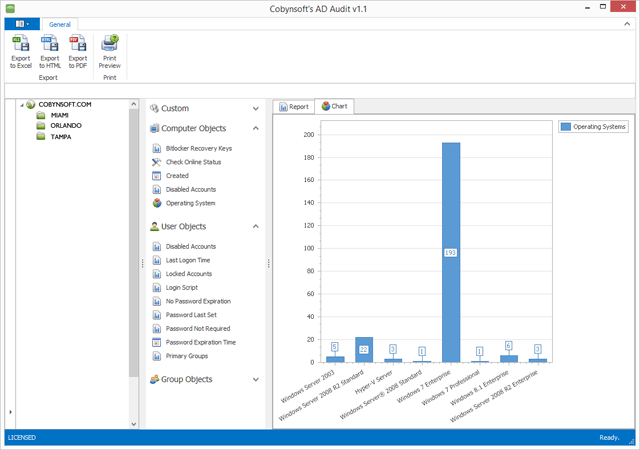
Cobynsoft 4 in 1

AD Audit
Cobynsoft’s AD Audit is a Windows utility for auditing your Active Directory to find security gaps.
Cobynsoft’s AD Audit is built around a unique information-centric design that allows you to quickly select and run reports and provides an easy mechanism for filtering and grouping results to create an infinite amount of unique reports.
Built-in Reports
Cobynsoft’s AD Audit consists of easy to use pre-defined reports that together with our advanced filtering and grouping options allows you to create an infinite amount of reports to suit your unique security audit needs.
* Bitlocker Recovery Keys
* Check Online Status
* Disabled Accounts
* Locked Accounts
* Last Logon Time
* Login Script
* No Password Expiration
* Password Not Required
* Password Expiration Time
* Primary Groups
* Empty Groups
Advanced Filters
FilterInstead of cluttering the user interface with hundreds of unnecessary pre-defined reports we have implemented advanced filtering options.
From the filter bar or using the custom filter dialog you can quickly select the parameters for your reports.
For example, in this example screenshot we’ve chosen to use the filters to only return Windows 8.1 systems that were created within the last month.
By using filters you can create an infinite amount of reports to suit your auditing needs without having to work with a cluttered user interface.
Advanced Grouping
Advanced GroupingJust like our innovative filtering you can use the grouping option to get intelligent data out of your Active Directory by putting similar data together.
For example, to get a quick overview of your various operating systems group them together by dragging the operating system column into the grouping bar like in the image to the right.
Then once grouped you can easily see your operating systems and can expand to see all systems with a specific operating system installed.
Built-in Tools
Check Online Status is one of our built-in tools. Think of it as an Active Directory ICMP Ping utility on steroids. Select your Organizational Unit, click Check Online Status and in a tabular report format you will see which of your machines are currently online, which are offline, and which are no longer in DNS making it perfect to help identify stale machines.
Multiple Export Formats
Cobynsoft’s AD Audit supports export of reports to a variety of industry standard formats such as Microsoft Excel (XLS), Hypertext Markup Language (HTML), and Portable Document Format (PDF).
AD Bitlocker Password Audit
Cobynsoft’s AD Bitlocker Password Audit is a Windows utility for querying your Active Directory for all or selected computer objects and returning their recovery password and volume information in a grid-view format giving you a quick overview of the status of your current password recovery capabilities.
If you have configured your BitLocker Drive Encryption to back up recovery information for BitLocker-protected drives and the Trusted Platform Module (TPM) to Active Directory Domain Services (AD DS) the backed up BitLocker recovery information is stored in a child object of the computer object.
That is, the computer object is the container for a BitLocker recovery object.
Each BitLocker recovery object includes the recovery password and other recovery information.
The recovery password is stored in the msFVE-RecoveryInformation attribute and if you have incorporated this process in your environment you have most likely also installed the Bitlocker Recovery Password Viewer for Active Directory so that you can view the recovery password for selected computer objects.
If this is the case, you may also have asked your self the following questions:
* I’ve just implemented Bitlocker, but how do I know that the recovery passwords are being populating for all of my computers?
* How can I identify machines that have problems with the Bitlocker process?
* How can I identify which machines do NOT have a recovery password?
You could answer these questions by opening the properties for each of your computer objects and locating the Bitlocker Password Recovery tab.
But, as you can imagine this is a very tedious project for a domain with hundreds or even thousands of computers.
This is where the AD Bitlocker Password Audit utility comes in handy.
Supports machines with multiple associated keys including Bitlocker-to-Go.
AD Object Recovery
Cobynsoft’s AD Object Recovery is a Windows utility for querying your Active Directory for deleted computer, user, group, or other objects and restore them on-the-fly.
* No domain controller downtime – Query, view, and restore Active Directory objects without rebooting the domain controller with Cobynsoft’s AD Object Recovery’s innovative graphical interface.
* Easily restore deleted objects – Reanimate deleted AD objects with Microsoft’s tombstone reanimation feature in Windows Server 2003 and 2008.
* Restore objects with all object attributes intact – If your Active Directory environment have the latest Recycle Bin feature enabled Cobynsoft’s AD Object Recovery is able to restore objects with all of their object attributes intact including the option to restore Bitlocker Recovery Password objects that are associated with a restored computer object.
* Highlighted Search – The keyword highlighter allows you to quickly find the objects you are looking for including the main object and any child objects
AD Password Extender
Cobynsoft’s AD Password Extender is a Windows utility that allows you to select a user account and extend the password expiration date by the amount of days specified in your Group Policy.
This is often helpful when you have end-users who are travelling and can’t log into the VPN or other Active Directory authenticated system.
By extending the expiration you ensure that accounts don’t get compromised from having to communicate the password across insecure channels.
Have you ever gotten the call from the Road Warrior or frequent business traveller saying:
“I am on the road and I can’t log into the VPN”?
It is a common problem and happens frequently because end-users forget to change their passwords before they leave for that stressful trip.
In some cases we break security protocols by asking them for their password and set the password to be the same.
In other cases we set a new password, but now the cached laptop password is different from their domain or VPN password causing confusion.
In either case we might have compromised the account as others might have overheard the conversation.
In some cases, we even say they are out of luck until they return to the office temporarily preventing them from working.
This is where the Cobynsoft’s AD Password Extender can help.
- Eingetragen
- 08.08.2015
- Kinostart
- nicht angegeben
- Größe
- 78,20 MB
- Kategorie
- Appz — Windows
- Passwort
- 2015.GeT-iT.2015